How Do I Make My Own Online Invitation?
If you can’t find the perfect design for your event, why not create your own? With Punchbowl, you can design online invitations that are completely unique to your celebration. Whether you want to upload a favorite photo, feature a custom graphic, or match your event theme perfectly, Punchbowl makes it easy to create a personalized invitation that stands out.
Creating Your Invitation on the Punchbowl Website
-
Find a Photo or Upload Your Own Design
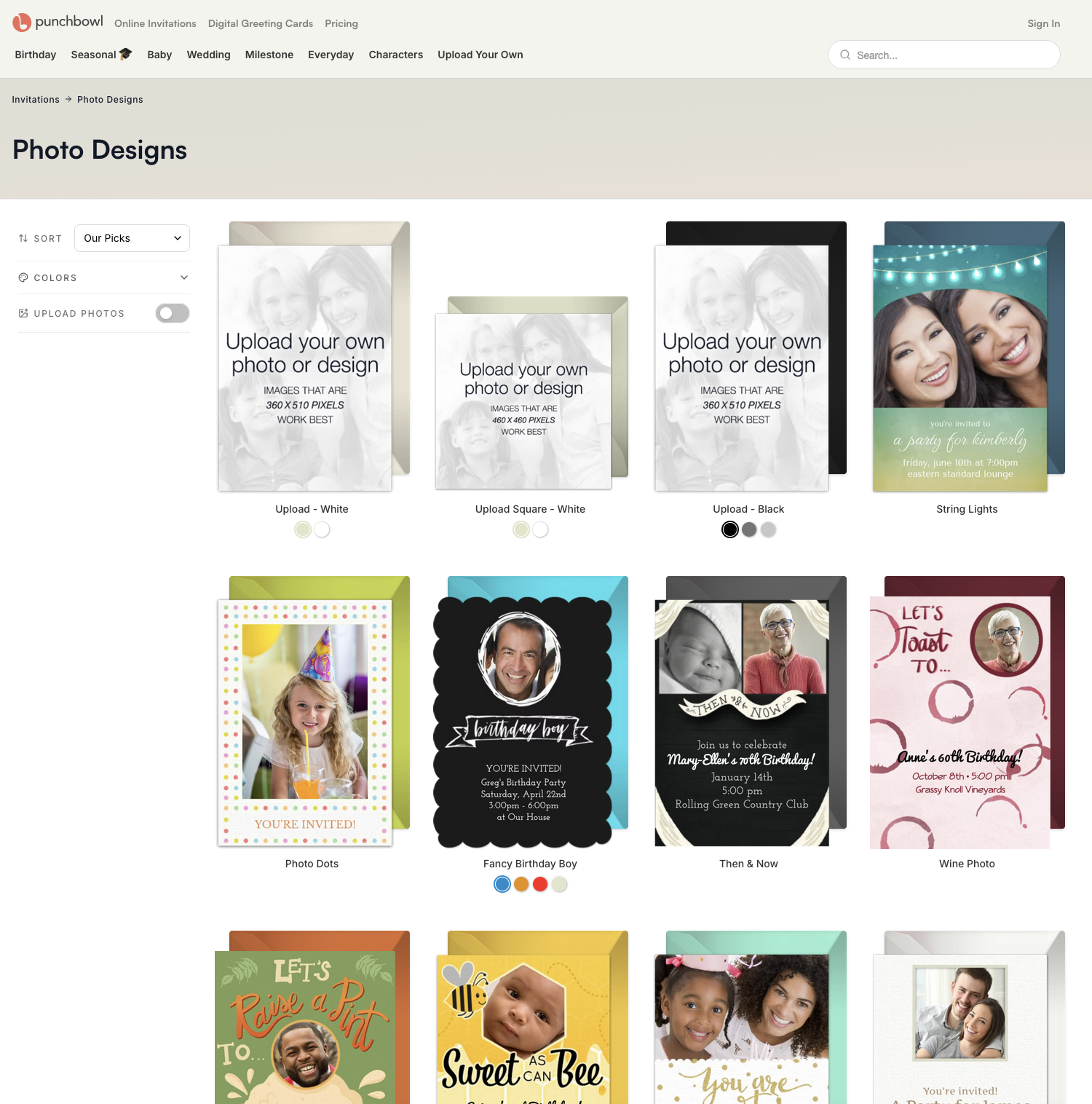
Start by finding a photo that fits your event’s theme. You can explore our Photo Designs collection, which includes templates that feature one or multiple photos. If you already have a custom design you’d like to use, simply upload your own to get started.
-
Personalize Your Design
Once you’ve selected your template, proceed to the Design Studio. Look for the “Add Photo” bubble to upload your image directly from your computer or device.

After uploading your image, it will appear in your Photo Library. From there, drag and drop it onto your design. You can use the “+” and “–” icons to resize or adjust the placement of your image until it looks just right.

-
Add Event Details
Enter your event information, including the event title, date, time, and location. You can also add personalized messages or details like dress code or RSVP instructions. Once complete, you’ll have a one-of-a-kind online invitation that’s ready to share.


Ready to Try it Yourself?

Creating an Invitation in the Punchbowl App
You can also create your own custom online invitation right from your phone or tablet.
-
Open the Punchbowl App
Download the free Punchbowl app on your iOS or Android device. Once inside, locate the Photo Designs category to browse the available templates, and choose one that fits your theme.

-
Upload and Edit Your Photo
After choosing a design and entering your event details, look for the “Add Photo” bubble on the Edit Design page and select an image from your device. You’ll be able to crop, resize, and reposition your photo directly within the app.

-
Finish Editing
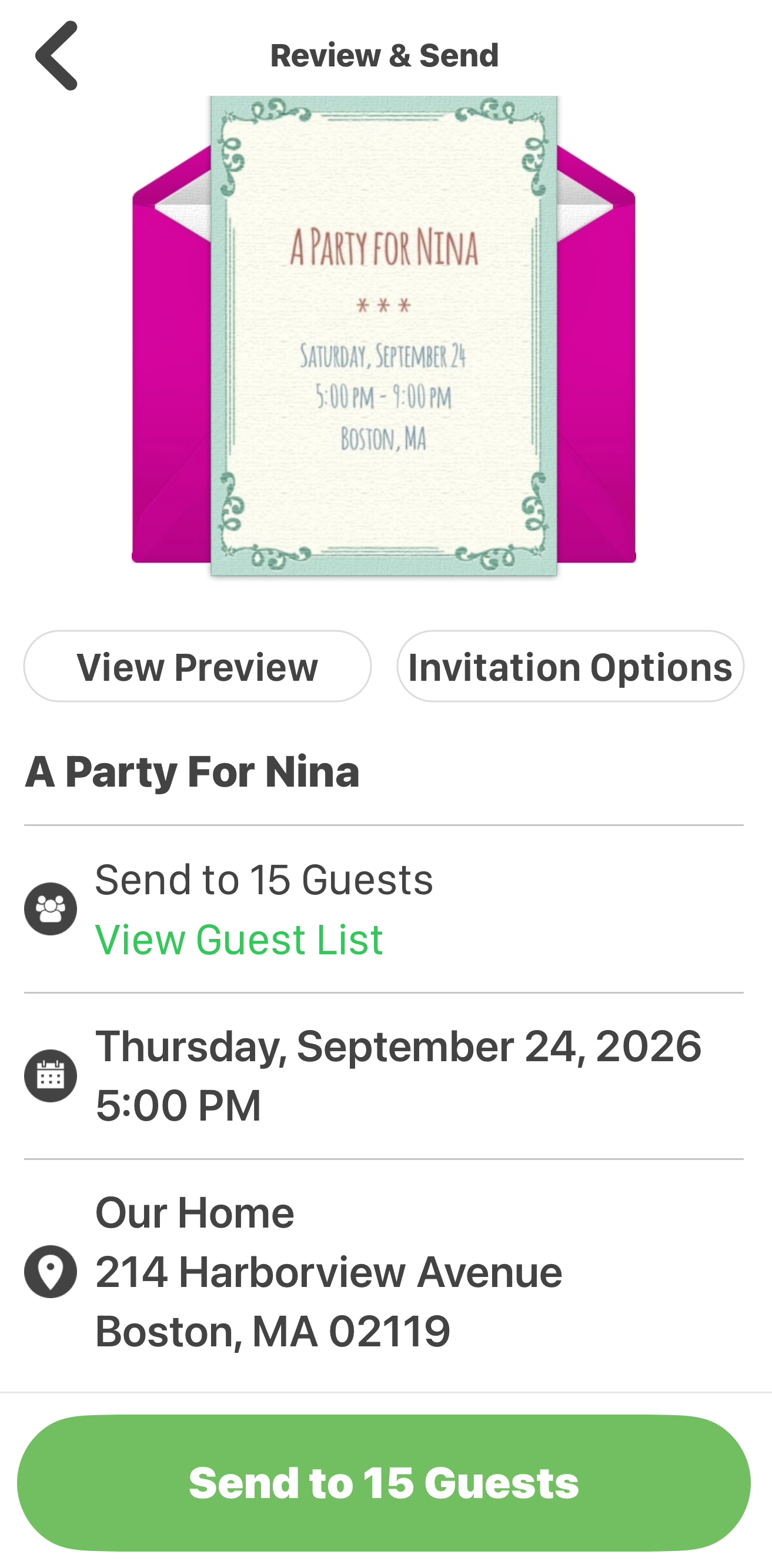
Once your design looks perfect, tap the Finish Editing to proceed with sending out your unique invitation.


Bring Your Vision to Life
Whether you’re creating a baby shower invite, a graduation announcement, or a birthday celebration, Punchbowl’s intuitive invitation maker gives you full control to design something special.

Still don’t have the Punchbowl app? It’s free to download and even easier to use. Try it today to design your next stunning invitation!


If you have additional questions about creating or uploading your own online invitation, please reach out to help@punchbowl.com for assistance.